Ultimate Camera provides an in-game cutscene editor to allow you to create cinematic cutscenes without writing any code.
Get started by running /cutscene create <name>, for which you'll need the ultimatecamera.cutscene.create permission. This will place you into the cutscene editor.
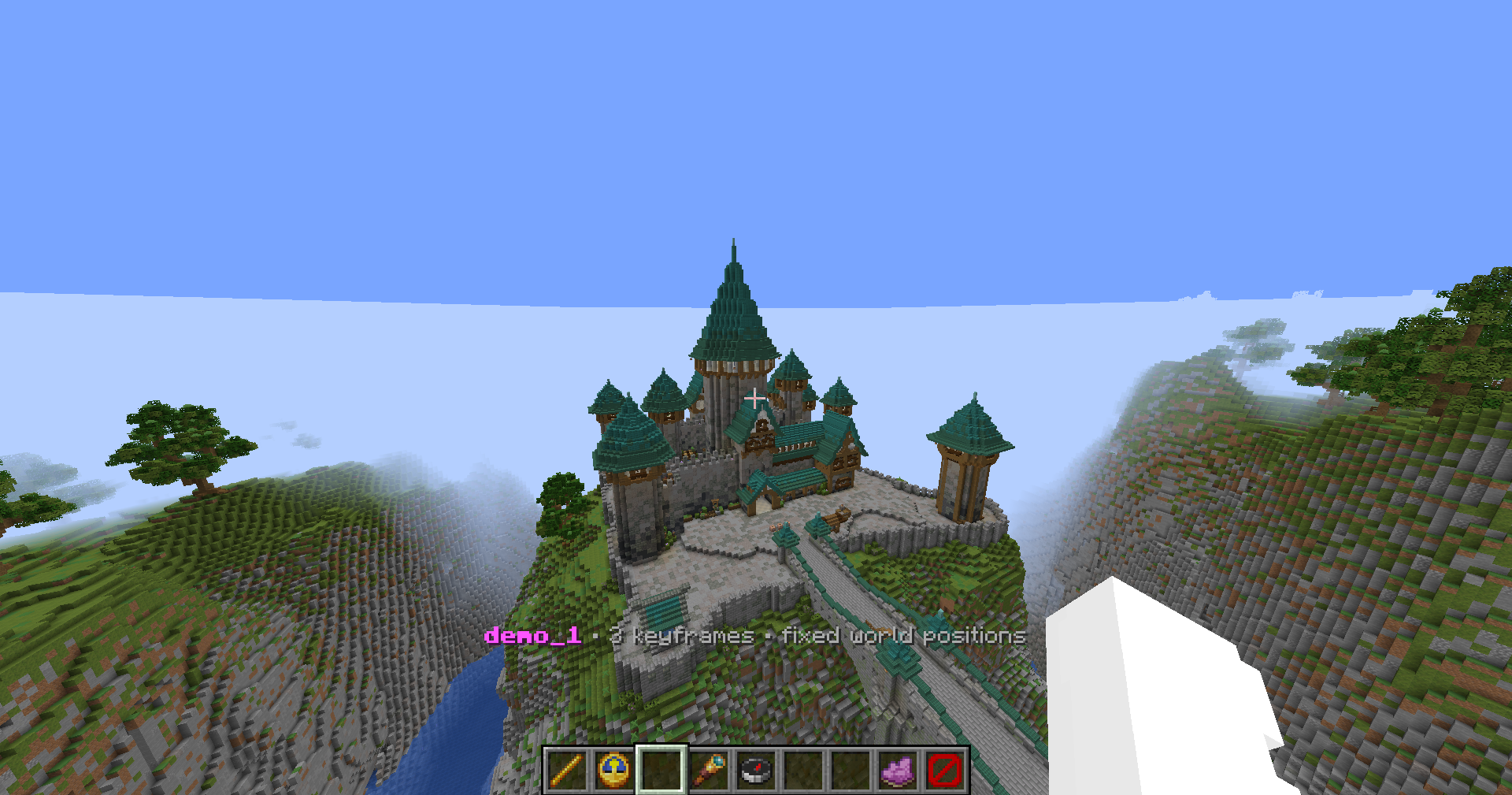
Use the blaze rod to create a keyframe at your location and orientation. You can then modify the keyframe's properties such as easing, roll, FOV/Zoom, and more. Excessively wide FOV settings are discouraged as they may cause visual bugs. Once you're done, you can preview the keyframe using the enderpearl, and then save it.
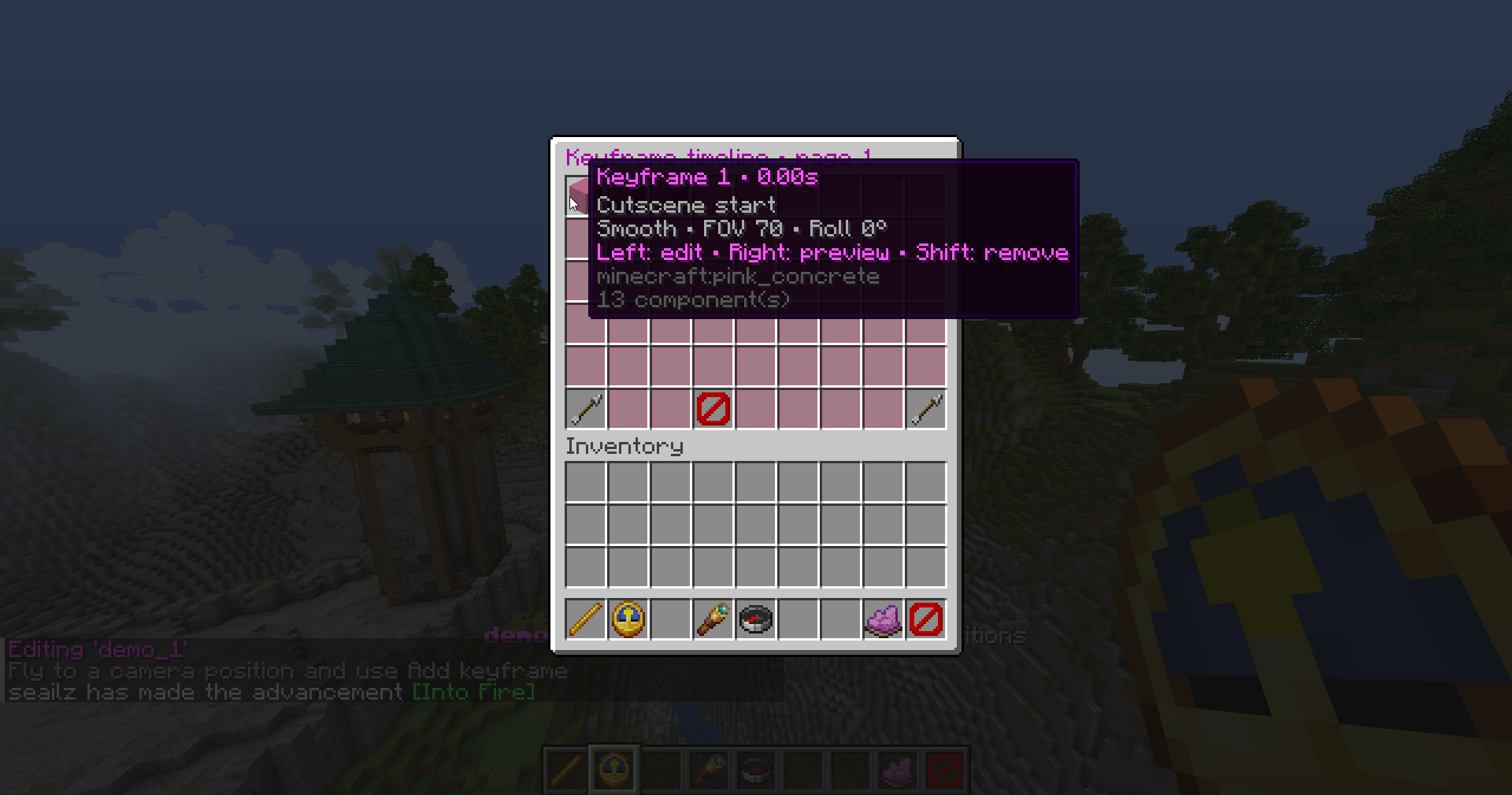
If you want to go back and edit a keyframe at any time, you can use the Keyframe Timeline GUI, or you can click on the particles in the world to select it. You can also preview your entire cutscene at any time using the spyglass.
Easing
Ultimate Camera provides a few different easing options built in.
Hold: The camera will hold its position and orientation until the next keyframe.Linear: The camera will move in a straight line between keyframes.Smooth(ease in/out): The camera will speed up and slow down as it approaches and leaves keyframes, creating a smooth transition.Sine: The camera will move in a slightly softer and more cinematic way than linear.Cubic in: The camera will start slow and speed up as it approaches the next keyframe.Cubic out: The camera will start fast and slow down as it approaches the next keyframe.Cubic in/out: The camera will start slow, speed up, and then slow down again as it approaches the next keyframe.Back out: The camera will overshoot the next keyframe and then come back to it, creating a more dynamic/bouncey movement.Out Sine: The camera will start fast and slow down as it approaches the next keyframe, with a sine wave motion.
You can also modify the strength of the curve.
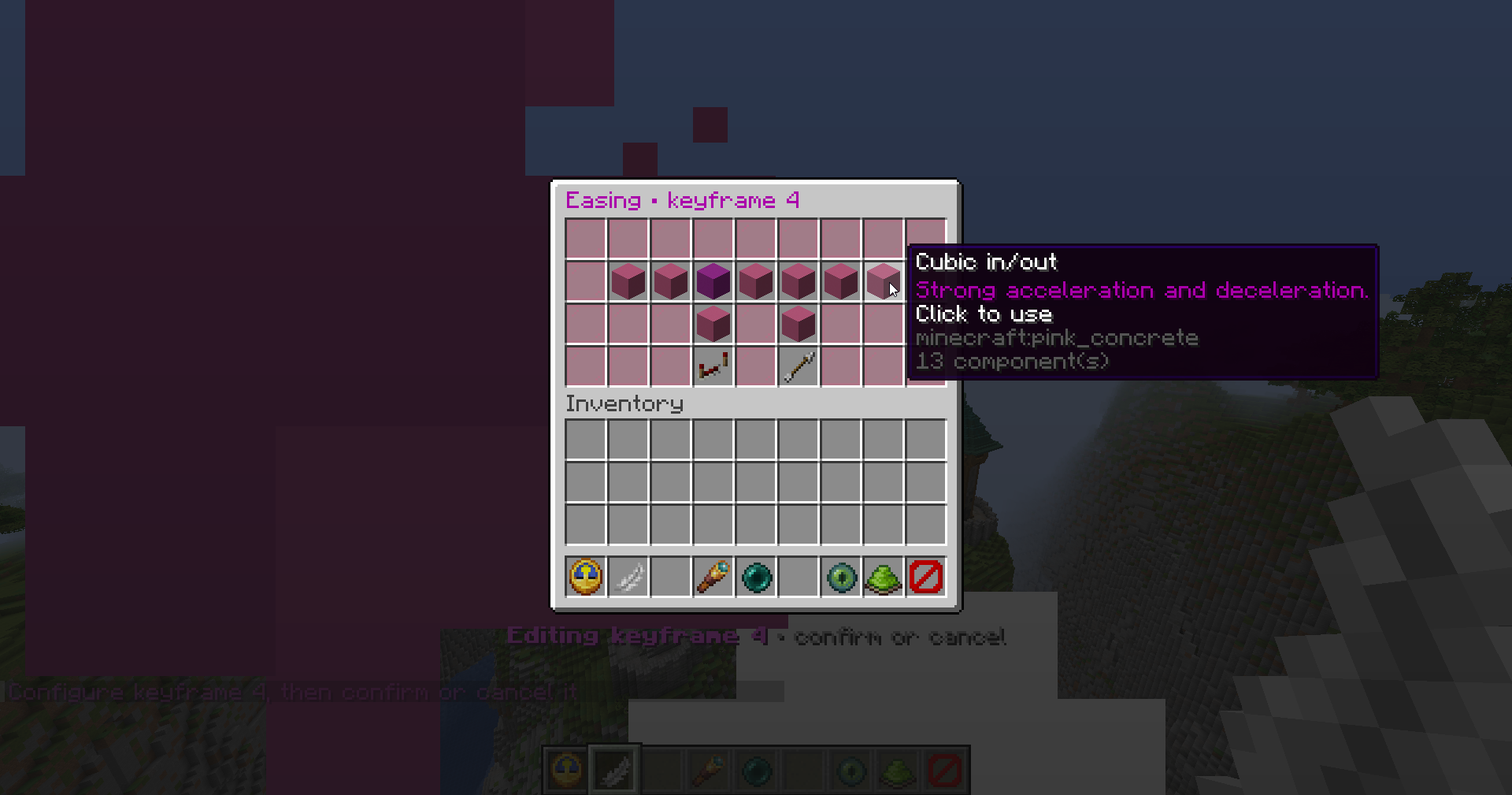
Customizing the curve more than this is not supported due to technical limitations, and easing functions need to be hard-coded into the resource pack. If you have a specific easing function in mind, please create a support ticket in Discord, and we'll likely add it in a future update.
Cutscene Settings
You can modify global settings of a cutscene using the compass.
Position space
The position space of the animation defines where keyframes actually are in relation to the camera and world. There are two options:
- Fixed world position: Keyframes are placed in the world at their actual coordinates. The animation will always play in the same location, regardless of where the player is when they start it. This is good for cutscenes that are meant to be played in a specific location, such as a cinematic or a scripted event.
- Relative to an origin point: Keyframes are placed relative to an origin point. This can either be defined by you or it can be set to the player's head location.
Mimicking NPC
When the cutscene is played, a player cannot see their own character. However, you can choose to create a "mimicking NPC" that will be visible to the player (and also other players) during the cutscene, creating an "out of body" experience. This feature requires Citizens to be installed on the server.
You can also choose to allow the player to control the mimicking NPC during the cutscene or not. This requires PacketEvents to be installed on the server.